
Knowing where your visitors come from is essential for growing your online business. Google Analytics 4 tracks this automatically—search traffic, social media clicks, email campaigns, direct visits. The trick is knowing how to read the data.
This guide covers GA4 traffic tracking from setup to analysis. I’ll skip the theory and focus on what actually works.
What Is Traffic Tracking in GA4?
Traffic tracking shows you how people find your website. GA4 captures the source automatically: Google search, Facebook, your newsletter, whatever. The point is figuring out which marketing channels work and which don’t.
GA4 uses an event-based model, which is different from the old Universal Analytics. Instead of counting page views, it tracks what people do on your site. As a result, you get a fuller picture of user behavior across both web and app.
Setting Up GA4 for Traffic Tracking
Create Your GA4 Property
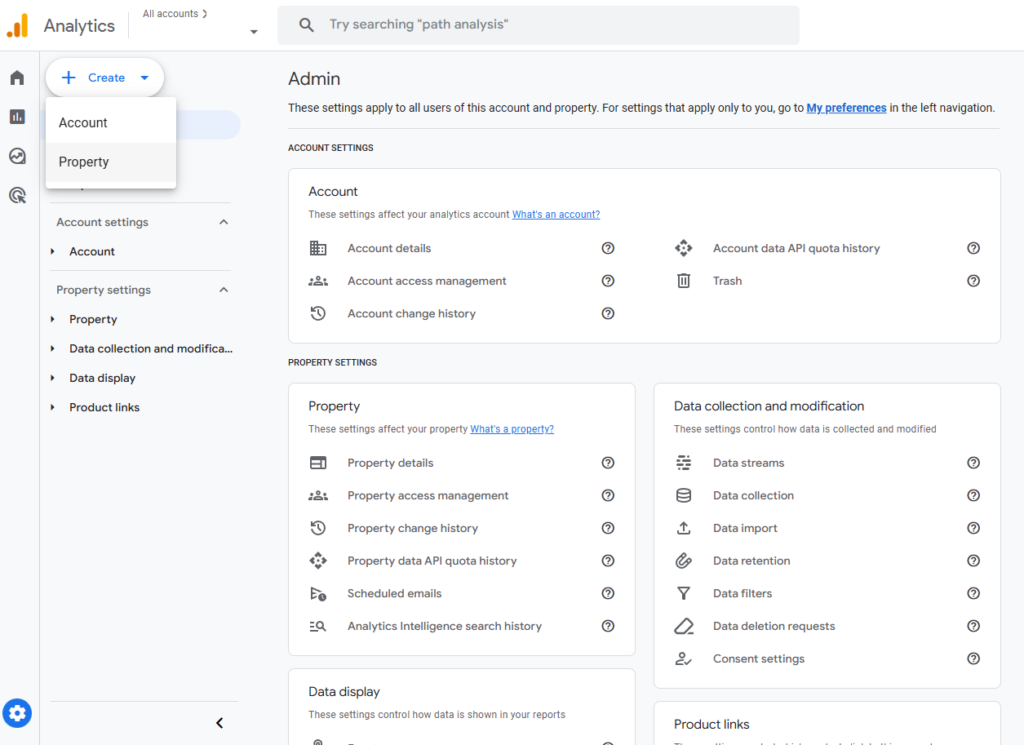
Log into Google Analytics, go to Admin, and click “Create Property.” The setup wizard asks for your property name, time zone, and currency.
Set up a data stream next. Choose “Web” for websites. Enter your URL and name the stream something you’ll recognize. GA4 generates a Measurement ID—it starts with “G-” and looks like gibberish.
Install the GA4 Tracking Code
You need to add GA4’s tracking code to every page on your site. Copy your Measurement ID first.
The easiest route is Google Tag Manager. Create a GA4 Configuration tag, paste your Measurement ID, set it to fire on all pages. If you’re not using Tag Manager, you can add the Global Site Tag directly to your header.
WordPress users: use the Site Kit plugin. Install it, connect your Google account, and it handles the implementation.
Verify Your Tracking Is Working
Open the Realtime report in GA4. Browse your site in another tab. You should see your visit appear within a few seconds.
If nothing shows up, use Chrome’s Tag Assistant extension to troubleshoot. Common problems: blocked scripts, wrong Measurement ID, ad blockers.
Understanding GA4 Traffic Sources
Default Channel Groupings
GA4 sorts traffic into standard channels:
Organic Search = unpaid traffic from Google, Bing, Yahoo. People who searched and found you.
Direct = people who typed your URL or used a bookmark. This also catches traffic where the source wasn’t captured properly. More on this later—it’s often a tracking problem, not actual direct traffic.
Referral = clicks from links on other websites. GA4 records which site sent them.
Organic Social = unpaid clicks from Facebook, Twitter, LinkedIn, Instagram.
Paid Search = ads on Google or platforms that let you buy website traffic (like traffic masters)
Email = clicks from email campaigns, assuming you tagged your links.
Affiliates = traffic from affiliate partners.
Display = banner ads and display advertising.
Traffic Medium and Source
GA4 tracks at two levels. Source = the specific origin (“google,” “facebook.com”). Medium = the general category (“organic,” “referral”).
These combine into pairs like “google/organic” or “facebook.com/referral.” You can analyze at either the detailed or summary level.
How to Access Traffic Reports in GA4
Navigate to Acquisition Reports
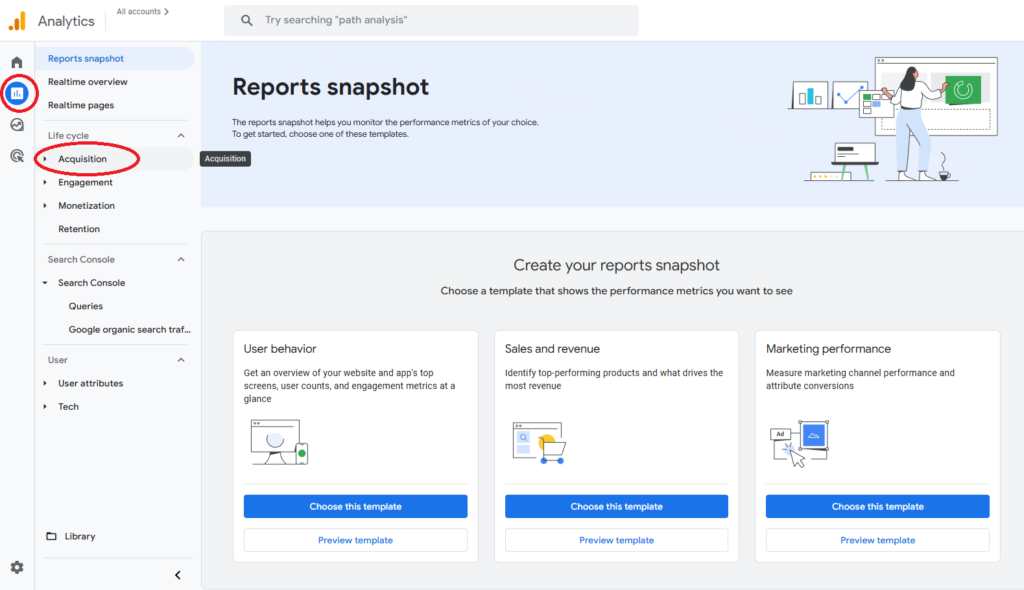
Click Reports → Life cycle → Acquisition.
The User acquisition report shows channels that brought new users. Traffic acquisition shows all sessions, including repeat visitors. You need both—they answer different questions.
Key Metrics to Monitor
Users = how many people visited.
Sessions = individual visits. One person can have multiple sessions.
Engagement rate = percentage of sessions where users engaged (not bounced).
Average engagement time = how long people stick around.
Conversions = completed goals like purchases or form submissions. This connects traffic sources to actual business results.
Tracking Specific Traffic Sources
Set Up UTM Parameters for Campaign Tracking
UTM parameters are tags you add to URLs. They’re how you track which specific email, social post, or ad drove traffic.
Five parameters:
utm_source = where it came from (“newsletter,” “twitter”)
utm_medium = the marketing type (“email,” “social”)
utm_campaign = the specific campaign (“summer_sale,” “product_launch”)
utm_term = paid search keywords (optional)
utm_content = differentiates similar links in the same campaign (optional)
Use Google’s Campaign URL Builder. Enter your URL, add parameters, get a properly formatted link.
Track Social Media Traffic
Social traffic appears automatically, but UTM parameters give you better detail. Tag every social link with the platform as the source and “social” as the medium.
For example: Facebook post gets utm_source=facebook and utm_medium=social. This separates organic social from paid social ads (which should use utm_medium=paid_social).
Instagram traffic often shows as direct because of their in-app browser. UTM tags fix this.
Monitor Email Campaign Performance
Tag all email links with your email platform as the source and utm_medium=email.
Use the campaign parameter to distinguish newsletters from promotional blasts from automated sequences. Add content parameters if you’re testing different CTAs in the same email.
Email traffic often converts better than other channels. You can build remarketing audiences based on email clicks.
Analyzing Your Traffic Data
Create Custom Reports
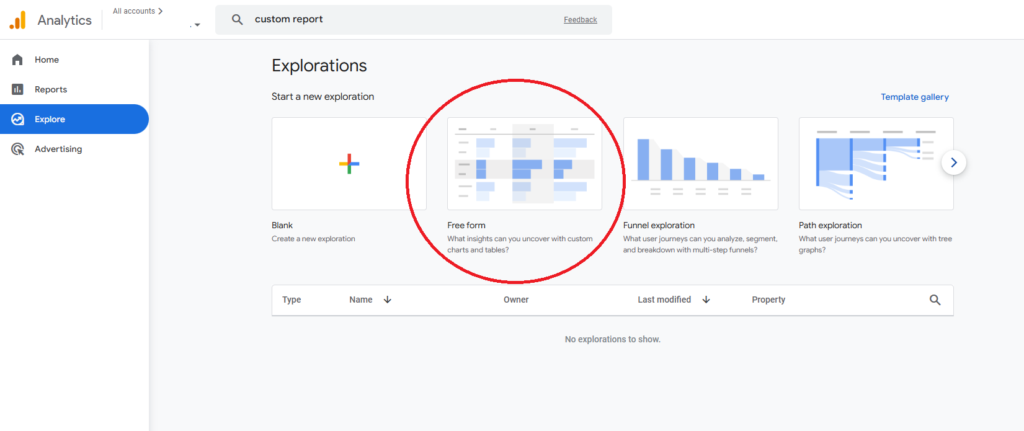
Custom reports let you dig into specific questions. Default reports are fine for overview data.
Go to Explore → Free form. Add dimensions like “Session source” and “Session medium” plus whatever metrics matter to you. Apply filters to focus on specific time periods or segments.
Save useful explorations as templates. This saves time and keeps your reporting consistent.
Compare Time Periods
Click the date selector in any report and choose “Compare to previous period” or “Compare to previous year.” This shows you whether traffic is growing or declining.
Look beyond total numbers. Which channels are improving? A drop in organic search might mean SEO problems. Growing referral traffic could indicate successful partnerships.
Identify Your Best Traffic Sources
Not all traffic is equal. Some channels bring barely-engaged visitors. Others bring people ready to buy.
Sort acquisition reports by engagement rate to see which sources bring engaged users. Check conversion rates to find channels that drive actual business results.
For paid channels, divide ad spend by conversions to get cost per acquisition. This shows your most cost-effective marketing.
For many niches, mobile website traffic is king for converting into sales.
Advanced Traffic Tracking Techniques
Set Up Conversion Tracking
Traffic data matters when it connects to business outcomes. Configure conversions in GA4 to track actions that matter: purchases, form submissions, newsletter signups.
Go to Configure → Events and mark relevant events as conversions. GA4 auto-tracks purchases if you’ve set up ecommerce. Create custom events for unique actions.
Once configured, acquisition reports show which sources drive conversions. You move from counting visits to measuring actual impact.
Build Traffic-Based Audiences
Audiences let you group users by traffic source or behavior. This powers remarketing and helps you understand different segments.
For example: create an audience for organic search visitors who didn’t convert. Remarket to them with ads. Build another audience from high-performing referral sources to analyze what makes them engage more.
Configure → Audiences → New audience. Set conditions like “First user source contains organic” or “Session medium equals email.” Audiences update automatically as new users match.
Track Cross-Domain Traffic
Cross-domain tracking prevents GA4 from double-counting sessions across multiple websites or subdomains. Without it, a user moving from your main site to a subdomain looks like a new referral.
Configure cross-domain measurement in data stream settings. List all domains that should track together. Update your tracking code to include these domains.
Test using GA4’s DebugView. Navigate between domains while watching the debug stream. User IDs should stay consistent.
Common Traffic Tracking Mistakes to Avoid
Not Filtering Internal Traffic
Employee visits inflate numbers and skew metrics. Create a filter to exclude internal traffic.
Define an internal traffic filter in data stream settings. Add your office IP address. GA4 still collects the data but lets you exclude it from reports.
For remote teams, exclude by hostname or create a separate test property.
Ignoring Bot Traffic
Bots generate false traffic. GA4 includes bot filtering—verify it’s enabled in data stream settings.
Watch for unusual patterns: sudden spikes from weird countries, extremely short sessions. Use filters to analyze human traffic separately if needed. Staying informed about mobile traffic trends for 2023 can help you identify which regions are driving those spikes. Consider leveraging data analytics tools to pinpoint specific demographics within these unexpected sources. This insight can guide your marketing strategies and improve user engagement.
Misattributing Direct Traffic
High direct traffic often means tracking problems, not people typing your URL.
Missing UTM parameters make campaigns show as direct. Check your links. HTTPS to HTTP transitions lose referral info. Mobile apps strip referral data. Some email clients remove it for privacy.
You can’t eliminate all misattribution, but proper UTM tagging minimizes it.
Troubleshooting GA4 Traffic Tracking
Data Isn’t Appearing
Check that tracking code is on every page. View source and search for your Measurement ID.
Test in Realtime immediately after visiting. If data appears there but not in standard reports, wait—GA4 takes 24-48 hours to process everything.
Ad blockers and privacy settings prevent tracking for some users. This creates a gap between actual and reported traffic, but usually affects all sources proportionally.
Traffic Numbers Don’t Match Other Tools
Discrepancies are normal. Different tools use different methods, count differently, handle bots differently.
GA4 defines sessions differently than older tools. Sessions timeout after 30 minutes by default. Other platforms may use different windows.
Small variations are fine. Large discrepancies suggest implementation problems.
UTM Parameters Aren’t Working
When tagged traffic shows as direct, check your formatting.
Parameters are case-sensitive. Use lowercase consistently. No spaces in values—use underscores or hyphens.
URL shorteners can strip parameters. Test shortened URLs to verify parameters survive. Most major shorteners work fine, but custom scripts might break them. When creating a seamless user experience, website redirection tools for developers are invaluable in managing traffic effectively. These tools allow for greater control over how users access content. They ensure links remain functional despite underlying changes. Additionally, implementing redirects properly can enhance SEO by preserving link equity and improving site performance.
Best Practices for Ongoing Traffic Analysis
Establish Regular Reporting Cadence
Review top sources and key metrics weekly. Export to a spreadsheet for historical tracking.
Do monthly deep dives to analyze trends and plan optimization. Quarterly reviews cover overall performance and budget allocation.
Document Your Tracking Setup
Write down your UTM naming conventions, custom events, conversion definitions. This ensures consistency and helps when team members change.
Record which channels get UTM tags and which rely on automatic detection. Document custom configurations and filters.
Stay Updated on GA4 Changes
Google updates GA4 regularly. Follow the GA blog and check property notifications.
Join communities where analysts discuss GA4. The official Help Community and marketing forums are useful.
Test new features in a test environment first.
Taking Action on Your Traffic Data
Traffic tracking only matters if you use it.
Double down on high-performing sources. If organic search drives conversions, invest in SEO traffic services. Strong email performance means building your list.
Experiment with underperforming channels before giving up. Test different messaging or landing pages. Sometimes channels underperform because of execution, not fundamentals.
Create hypotheses and test them. If social traffic bounces, maybe your post copy sets wrong expectations. Try different messaging.
The best traffic source isn’t the biggest—it’s the one that drives valuable actions at acceptable cost.
Conclusion
Install GA4 properly. Verify data collection. Get familiar with standard reports. Add UTM parameters to campaigns. Build regular analysis into your workflow.
Traffic tracking is a means to an end. Use these insights to allocate resources, improve underperforming channels, and grow sources that drive business value. To achieve long-term success, explore various website traffic growth techniques tailored to your unique audience. Implementing strategies such as content optimization and targeted advertising can enhance visibility and engagement. Additionally, staying updated on industry trends ensures your approach remains relevant and effective.