Website Traffic Report: What to Include and How to Build One in GA4
A website traffic report is a structured summary of how visitors find, engage with, and leave your website over a set period. A good one takes 20–30 minutes to build in GA4. It gives stakeholders everything they need — without having to dig through raw data themselves.
This guide covers exactly what to include, how to pull each metric from GA4, and a template structure you can reuse every month.
Who Actually Uses a Website Traffic Report?
Traffic reports aren’t just for SEOs. Three groups rely on them:
- Agency teams sending monthly updates to clients
- In-house marketers reporting up to managers or directors
- Business owners tracking growth over time
Each group needs slightly different framing — but the core metrics are the same. The difference is how much context and interpretation you layer on top.
What Should a Website Traffic Report Include?
A complete website traffic report has seven sections. Here’s each one and where to find the data in GA4.
1. Executive Summary (2–3 sentences)
Start with the headline numbers. Include total sessions, biggest traffic change vs. the prior period, and one key takeaway. This is what your client or manager will actually read — make it plain English.
Example: “Total sessions were up 18% in March vs February, driven by a strong increase in organic search. Paid traffic was flat. One page — our comparison guide — now accounts for 22% of all organic entries.”
2. Total Sessions and Users
In GA4: Reports → Acquisition → Overview.
Report both sessions and active users. Sessions count visits; users count unique people. Both matter.
For example, a site with 10,000 sessions but only 1,200 users has very high return visit rates — worth noting. A site with 10,000 sessions and 9,800 users has almost no repeat visitors.
Always compare to the previous period. Month-on-month and year-on-year are both useful. GA4 lets you set a comparison range directly in the date picker.
3. Traffic by Channel
In GA4: Reports → Acquisition → Traffic Acquisition.
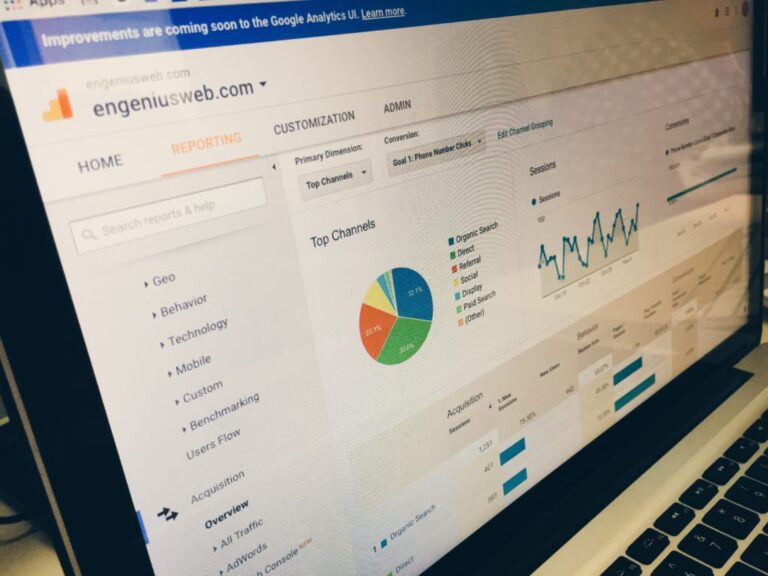
This is the core of any website traffic report. Break down sessions by default channel group:
- Organic Search — SEO performance
- Direct — branded searches, bookmarks, and increasingly AI-referred traffic
- Referral — links from other sites
- Organic Social — unpaid social media
- Paid Search / Paid Social — ad spend performance
- Email — newsletter and campaign traffic
Note any channels that jumped or dropped more than 15% compared to the previous period. That’s where the conversation should go.
4. Top Landing Pages
In GA4: Reports → Engagement → Landing Page.
Which pages are driving the most entrances? List the top 10 by sessions. Note bounce rate and average session duration for each. In GA4, bounce rate measures sessions with a single pageview and no engagement.
Pages with high sessions but very low engagement time are candidates for content improvement. However, pages with low sessions but high engagement time are underperforming on reach — consider driving more traffic to them.
5. Engagement Metrics
GA4 replaced the old bounce rate model with an engagement-first framework. The key metrics to include:
- Engaged sessions — sessions lasting 10+ seconds or with 2+ page views
- Engagement rate — percentage of sessions that were engaged (aim for 50%+)
- Average engagement time per session
- Pages per session (Events → page_view)
These metrics tell you whether traffic is valuable. High sessions + low engagement = a traffic quality problem. High engagement + lower sessions = strong content, weak reach.
6. Conversions (If Applicable)
In GA4: Reports → Engagement → Conversions.
If you have conversion events set up (form submissions, purchases, sign-ups), include the total count, conversion rate by channel, and which landing pages drove the most conversions.
If conversions aren’t set up yet, flag it. A website traffic report without conversion data tells only half the story. It’s like measuring how many people walked into a shop without knowing how many bought anything.
7. Period-Over-Period Summary Table
End with a clean comparison table. Something like:
| Metric | This Period | Last Period | Change |
|---|---|---|---|
| Total Sessions | 12,400 | 10,500 | +18% |
| Organic Sessions | 7,200 | 5,800 | +24% |
| Engagement Rate | 58% | 54% | +4pp |
| Conversions | 142 | 118 | +20% |
A table like this lets stakeholders see the full picture in seconds. It’s the most reusable part of any traffic report template.
How Often Should You Send a Traffic Report?
Monthly is the standard for most agencies and in-house teams. Weekly reports are useful during active campaigns or site launches. Quarterly reports work better for executive audiences who don’t want operational detail.
Consistency is key. A monthly report on the same date every month builds the habit — for you and for whoever receives it.
What Time Period Should the Report Cover?
Use calendar months where possible. Month-on-month comparisons are easy to understand, but they’re affected by seasonal variation. Year-over-year comparisons are more reliable for spotting real growth trends.
In GA4, set your primary date range (e.g., March 1–31) and add a comparison range (March 1–31, previous year). You’ll see the delta automatically across all reports.
Avoid comparing periods of different lengths. A 28-day February vs. 31-day March will always make March look better, even if nothing changed.
Common Mistakes in Traffic Reports
These are the errors that make reports hard to act on:
- Reporting sessions without context. “We got 12,000 sessions” means nothing without a benchmark. Is that up or down? Good or bad for this industry?
- Mixing GA4 and UA data. If you migrated from Universal Analytics, your historical data is incomparable to GA4 data. Flag this clearly.
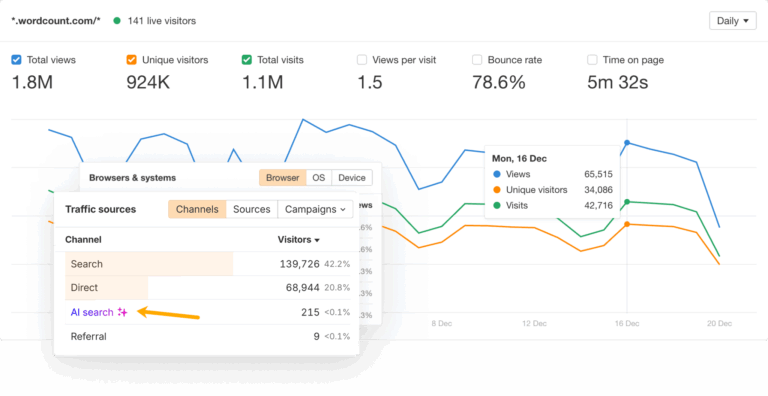
- Ignoring direct traffic spikes. A sudden jump in direct traffic often means AI platforms (ChatGPT, Perplexity, Claude) are sending referrals that aren’t being attributed correctly. It’s worth investigating.
- No recommendations. A report without at least one recommended action is a status update, not analysis. Always include a “What we should do next” section.
Should You Use a Template or Build from Scratch?
Templates save time, but they can create a false sense of completeness. A pre-built template might include metrics that don’t matter for your business — and miss the ones that do.
The best approach: build your own template once, based on the seven sections above, then reuse it. You can automate data pulls into Google Sheets using GA4’s Looker Studio connector. It takes about an hour to set up and eliminates the manual copy-paste work forever.
How Does Paid Traffic Fit Into a Traffic Report?
Include a dedicated paid traffic section if you’re running paid campaigns or testing traffic acquisition strategies. Break it down by channel (Google Ads, Meta, display) and report cost-per-session alongside conversions.
Some teams also test buying internet traffic from direct providers to supplement organic growth — especially during launches or when SEO is still building momentum. If you’re doing this, track it as its own channel using UTM parameters. This means it shows up cleanly in your GA4 report rather than muddying the direct or referral buckets.
For a deeper look at how to interpret all the numbers your report surfaces, the website traffic analytics guide covers the full framework for turning raw GA4 data into decisions.
The One-Page Website Traffic Report Template
Here’s a structure you can adapt immediately:
- Summary: 2–3 sentences. What happened, why, and what it means.
- Sessions & Users: Total + % change vs prior period
- Channel Breakdown: Top 5 channels by session volume + % change
- Top 5 Landing Pages: Sessions + engagement rate for each
- Engagement: Overall engagement rate + avg session duration
- Conversions: Total + conversion rate (if tracked)
- Key Takeaway + Recommended Action: One thing to focus on next period
Keep it to one page for clients, two at most. Longer reports get skimmed — or ignored entirely.
Final Thoughts
A website traffic report is only as useful as the decisions it drives. The best ones are concise, comparative, and always end with a recommendation. Build the template once in GA4 or Looker Studio, and reporting becomes a 20-minute monthly task instead of a half-day project.
Start with the seven sections above. Strip out anything that doesn’t apply to your business, and add the comparison table. That’s it — you don’t need a reporting platform or an expensive tool to do this well.